When date-range search is useful
Date filtering is especially useful for monthly backups, campaign archives, migrations, content handoffs, or locating media from a specific production period.
How the workflow works
- Open Vault Downloader while signed in to your creator account.
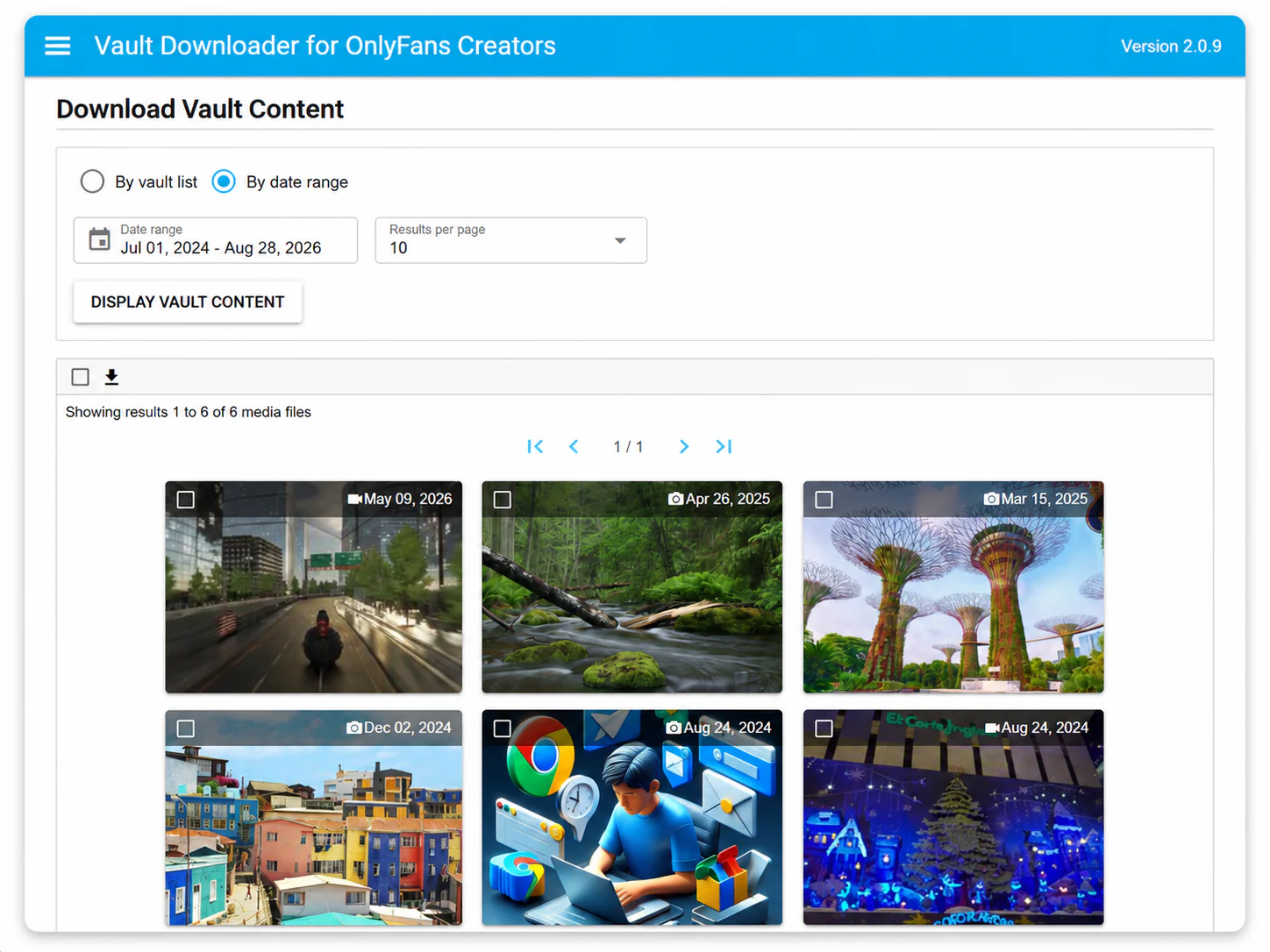
- Switch from vault-list browsing to date-range search.
- Choose the start and end dates.
- Display the matching vault content.
- Select the supported media you want to include in your local backup.
Date search versus vault-list browsing
Use vault-list browsing when you know the organizational list that contains the content. Use date-range search when time is the better clue. Both approaches lead to the same goal: narrowing a large vault before selecting files.
Keep archive periods consistent
If you run regular backups, consistent periods make later retrieval easier. For example, monthly or quarterly archive windows are easier to reason about than irregular one-off backups.
Limitations still apply
Date filtering changes how you find content; it does not change what media is supported. DRM-protected media is not supported.